
Before you start
Your administrator creates your Sales Partner account and shares your login details with you manually. You do not need to register a Sales Partner account yourself.
- The store address: store.ledworld.com.
- Your login username: the email address provided by your administrator.
- Your password, provided by your administrator.
If you received a username that is not an email address, ask your administrator to confirm your Sales Partner login email. Keep your password private; customers only need your referral link.
Sign in to your account
- Open Sales Partner login. You can also find Seller login under Account & help in the store footer.
- Select the Sales Partner tab if it is not already selected.
- Enter the Email address and Password your administrator shared.
- Select Sign in as Sales Partner →. Your dashboard opens after successful sign-in.
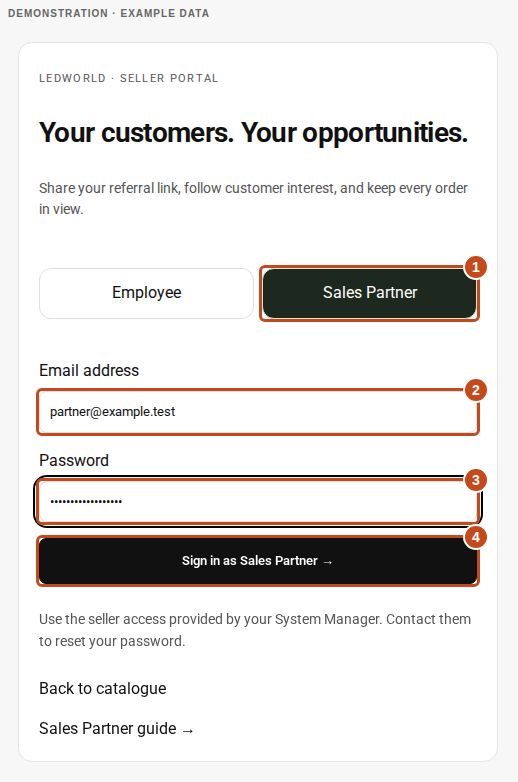
Need a password reset? Contact the administrator who issued your account. Sales Partner passwords are managed by your administrator; the customer account reset form does not reset this login.
Refer a customer with your link
Copy and share your personal link
- On your dashboard, find Your customer registration link.
- Select Copy link. A “Referral link copied.” message confirms it worked. If copying is blocked, select the link field and copy it manually.
- Paste the complete link into your WhatsApp message, email or other customer conversation. Keep the full /r/… part intact.

What your customer needs to do
- Open your complete referral link. It takes them to the customer registration page.
- Create their own account with their name or organisation, email, phone, address, city, country and a password. They should follow any verification or profile-completion instructions shown.
- Stay in the same browser while registering. The store uses a referral cookie to connect the new account to you; switching device, clearing cookies or opening another partner’s link can affect attribution.
- Sign in when saving products or placing an order. After registration, check your Customers list to confirm that the customer appears.
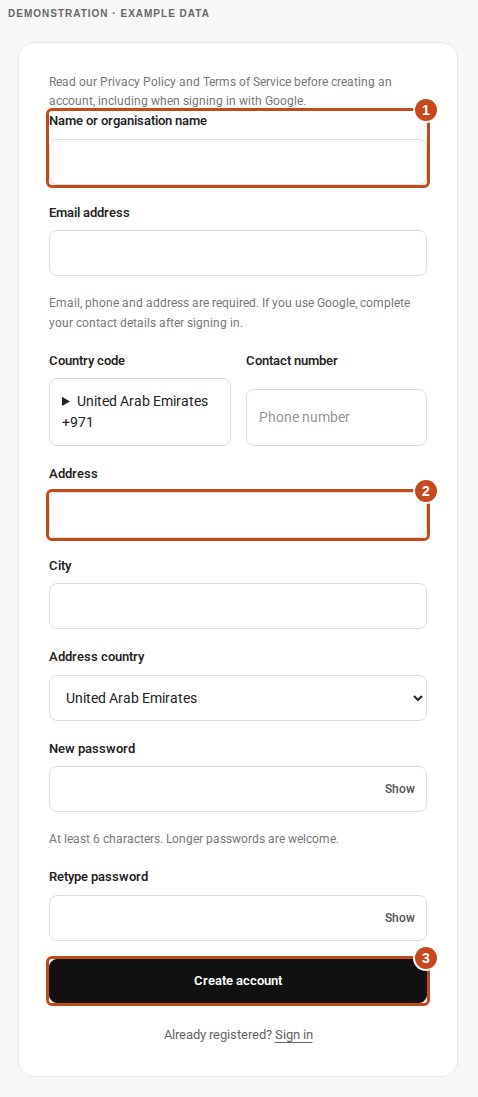
Opening a link is not a completed referral. Existing customer accounts are not reassigned simply by opening your link. Ask your administrator to review an existing account or a missing attribution. The referral cookie can last up to 30 days, but ask customers to register immediately through your link.
Understand your dashboard
Open your dashboard after signing in. It shows the customers attributed to your Sales Partner account and their available website records.
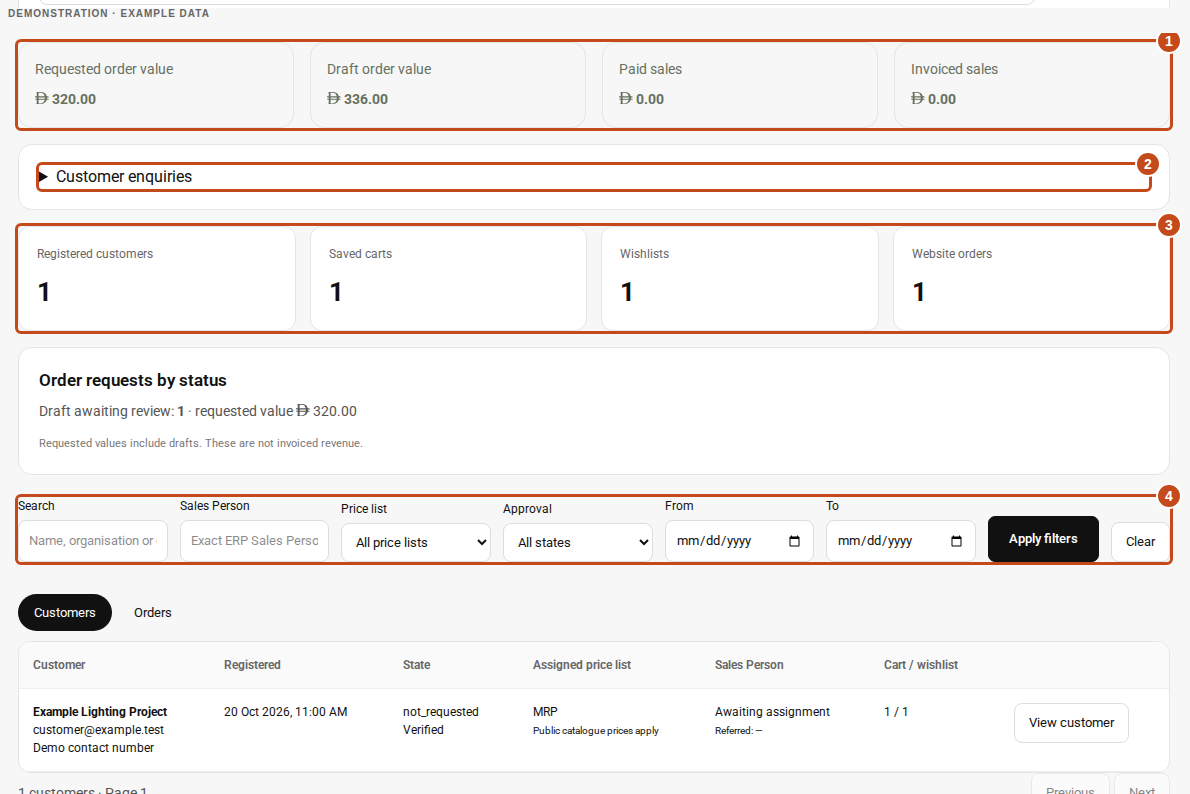
| What you see | What it means |
|---|---|
| Registered customers | Customers attributed to you within the selected customer filters. |
| Saved carts / Wishlists | Number of customers with a non-empty saved cart or wishlist. These totals are not product quantities. |
| Website orders | Website order records for your customers. Select this tile or the Orders tab to review them. |
| Requested / Draft order value | Requested and draft amounts. A request or draft is not confirmed revenue. |
| Paid / Invoiced sales | Totals of orders recorded as paid or with a submitted invoice. These values may overlap; do not add the four sales values together. |
Amounts are in AED. Dates and times use Dubai time. Customer date filters use registration dates; order date filters use order creation dates. Sales value tiles use the date range and your referred-customer scope, so they may not match every list filter.
The customer and order lists refresh about every 30 seconds while the dashboard is visible. This is a view of saved customer activity, not a history of every page visit or referral-link click. Enquiries may require a page refresh to show new records.
Follow your customers and saved selections
- Select Customers. Search by name, organisation or email, then select Apply filters. You can also filter by approval, price list, Sales Person and dates. Use Clear to remove filters.
- Review the customer’s registration date, verification and approval state, assigned price list, Sales Person, and cart / wishlist counts.
- Select View customer. The customer detail panel opens below the list; scroll down if needed.
- Use cart, wishlist and orders to review that customer’s saved products, quantities and website requests. Check Saved selections last updated before following up.
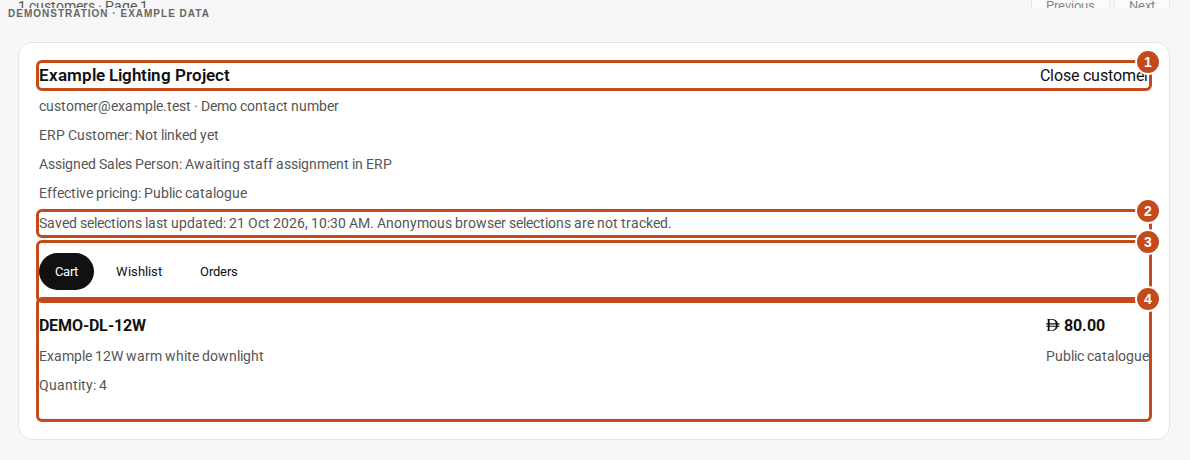
A cart shows products the customer has saved for possible purchase. A wishlist is a shortlist. Use these to discuss their requirements; neither is a placed order. Anonymous browser selections are not tracked in this panel.
Use Previous and Next below the list to move between pages. Select Close customer when finished.
Pricing and approval are controlled by the store. Referring a customer does not automatically grant trade pricing. Contact your administrator for pricing, salesperson assignment or ERP Customer linking changes. ERP links, when shown, require separate ERP access.
Review customer enquiries
Expand Customer enquiries near the top of the dashboard. Review the enquiry number, type, status, message, products and requested quantities. Use its own Previous and Next buttons for more records.
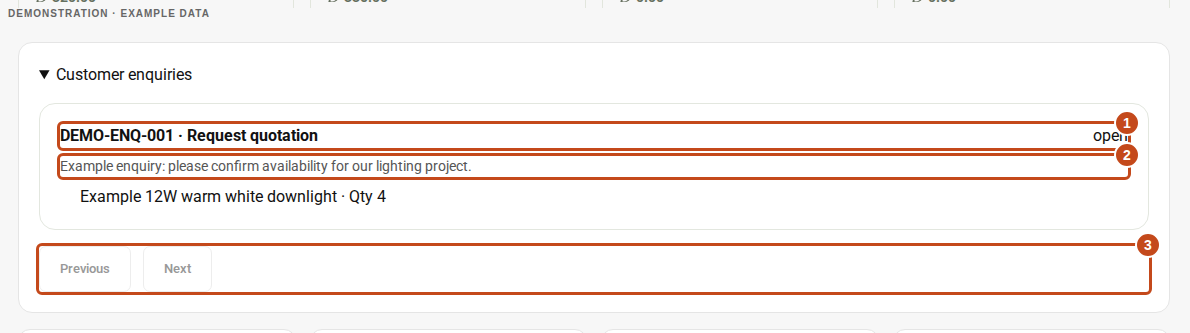
Follow up using the customer’s contact details from the Customers list. Quote the enquiry number when asking the store team for support. This panel displays enquiries; reply and status-edit controls are not available here. Its pagination is separate from the customer and order filters below.
Track orders from request to completion
- Select the Orders tab or the Website orders tile.
- Use search, dates and Order status, then select Apply filters. Clear filters if a record is missing.
- Review the order number, customer, status, created time, requested delivery date and requested estimate.
- Expand Products and original request, Delivery details or Current ERP draft details when available. Check Last ERP update before reporting progress.
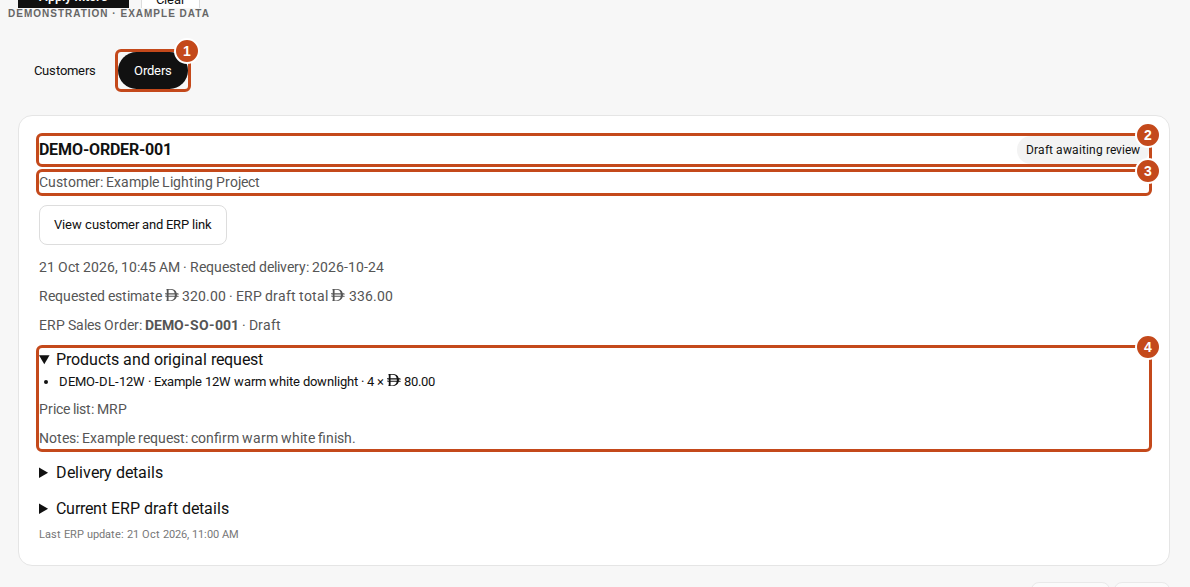
What the order status means
| Status | Meaning / next step |
|---|---|
| Received | The website has saved the request. Allow the store to process it. |
| Awaiting salesperson assignment | Ask your administrator to assign a Sales Person so the saved request can proceed. |
| Waiting for account synchronization | Customer account setup is still being synchronized. Ask the team if it does not progress. |
| Sending to ERP | The saved request is being sent or retried. Share its existing number if support is needed. |
| Needs attention | The store team must review the saved request. Contact them with the order number. |
| Draft awaiting review | An ERP draft exists and is waiting for review. |
| Submitted in ERP | The order has been submitted in ERP. Check current details with the team for fulfilment. |
| Partially delivered / Delivered | Some or all delivery has been recorded. |
| Completed / Cancelled | The record is completed or cancelled. Ask the team for any further action. |
A requested estimate can differ from the final ERP amount. Payment, invoicing and delivery are separate steps. The dashboard is for reviewing records; ask the store team for order changes, cancellations or payment confirmation. Avoid asking a customer to submit again while an existing request is being processed.
A simple daily routine
- Share your referral link with new customers and ask them to register through it.
- Check Customers for new registrations and incomplete verification or approval.
- Review saved carts and wishlists, then follow up on the customer’s requirements.
- Open Customer enquiries and check for new quotation or product requests.
- Review Orders and flag requests that need the store team’s attention.
- Select Sign out at the top of the dashboard when finished, especially on a shared device.
Sessions can end after 30 minutes of inactivity or after eight hours. If you are sent back to login, sign in again. Keep your administrator’s contact details available for account support.
Troubleshooting & help
I cannot sign in.
Confirm you are on Seller login with Sales Partner selected. Use the administrator-provided email and check for extra spaces or Caps Lock in the password. If it still fails, ask your administrator to confirm your account is active and reset the password. After a too-many-attempts message, wait before trying again.
The sign-in button is disabled or access is unavailable.
If you see “Partner access is being prepared” or an access-confirmation error, contact your administrator. Refresh and try again after they confirm access is enabled. Creating a customer account will not enable your Sales Partner login.
My referral link does not work.
Sign in, copy the full link again, and make sure your message has not cut off its ending. Ask the customer to open it in their browser. If they reach a URL containing “referral=unavailable”, ask your administrator to check your account and link before the customer registers.
A referred customer is missing.
Clear filters and check other pages. Confirm the customer completed a new registration from your full link in the same browser. Existing accounts are not automatically reassigned. Ask your administrator to review attribution using the customer’s registration email; do not ask the customer to create duplicate accounts.
The cart or wishlist is empty.
Ask the customer to sign in to their own account and save their selections. Guest selections and unsaved browsing are not visible. Check the last saved update, allow the dashboard to refresh and reopen the customer.
An order or enquiry is missing or looks out of date.
Confirm the customer submitted it and provided a reference number. Check the correct tab, clear filters, check other pages and refresh. If it is still missing, give the store team the reference, customer email and approximate submission time. Include the Last ERP update for an order issue.
Can I change prices, approve customers or manage commissions here?
This dashboard shows customer pricing, activity, enquiries and order records. Ask your administrator for pricing, approvals, customer assignment or any agreed commission and payout information. No commission or payout screen is available in this guide’s Sales Partner flow.
Need a hand?
For your login or referral assignment, contact the administrator who created your account. For customer and order support, contact Ledworld at sales@ledworld.com or +971 4 338 3432.
Share your login email, the relevant customer or order reference, and a screenshot of the issue. Keep passwords out of support messages.